
ChatGPT Chrome extensions for developers: what to check


A ChatGPT Chrome extension can help with page questions, browser actions or coding work. For web development, choose by the task: how you attach a rendered element, connect the source project and check the result. Start with OpenAI's official extension for its ChatGPT browser workflow. Consider Lizard Studio when you want page selection and design controls beside a coding session connected to your local folder.
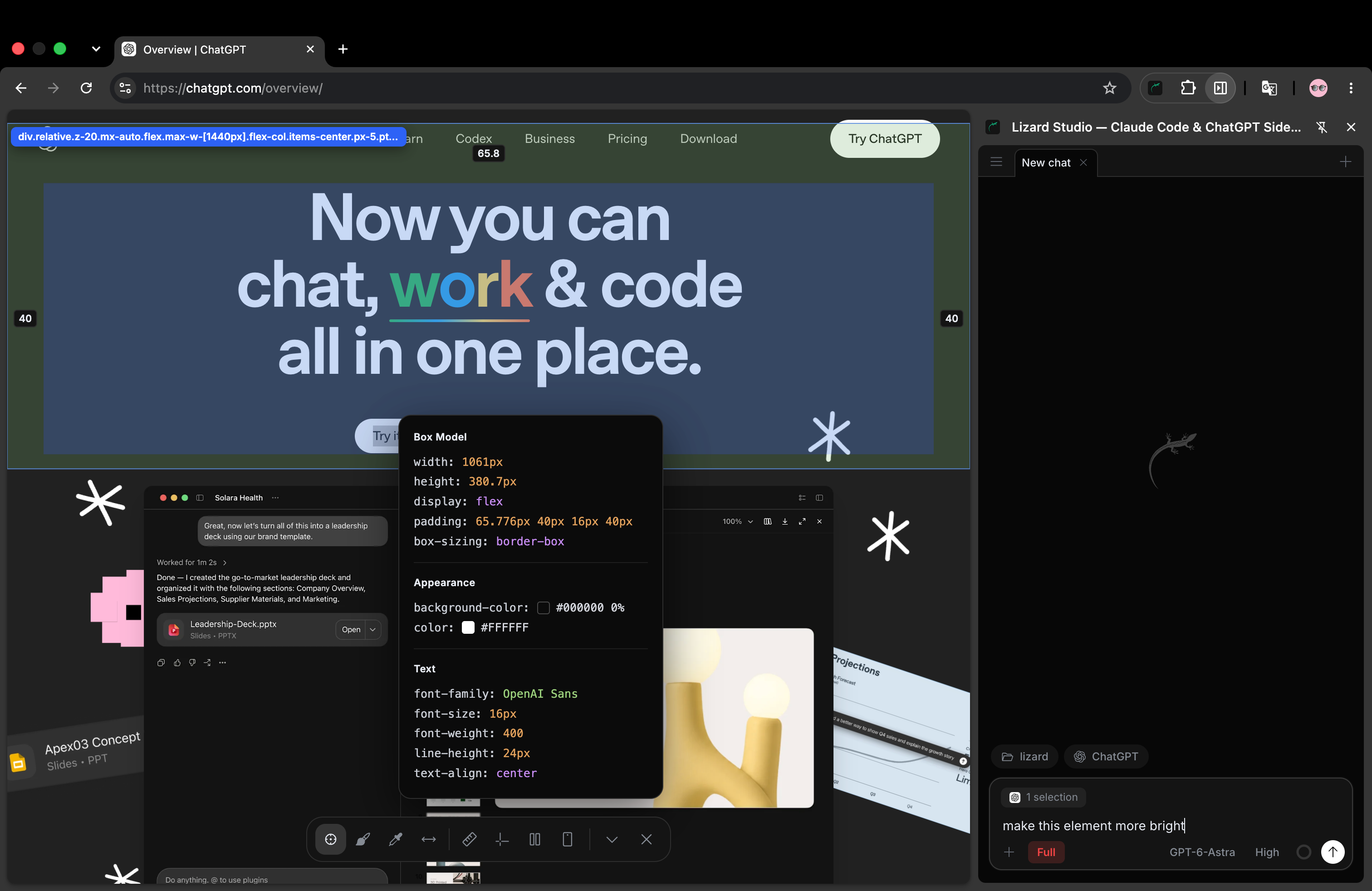
This is the real Lizard Studio interface, an independent extension. The screenshot shows its ChatGPT connection; it is not a screenshot of OpenAI's official extension.
We build Lizard Studio. We checked the linked documentation on September 14, 2026. This comparison covers documented workflows and a test you can repeat. It does not rank the tools by speed, model quality or success rate.
Compare the two browser workflows
| Criterion | OpenAI's ChatGPT extension | Lizard Studio |
|---|---|---|
| Session setup | Connects with ChatGPT desktop. | Connects a Chrome panel to a local agent CLI through a host. |
| Page work | Tab context, browser actions and side chat in supported browsers. | DOM, screenshots, console, network and browser actions through agent tools. |
| Local context | OpenAI documents local files alongside page context in side chat. | You select the project folder used by the coding session. |
| Design inspection | Check the current product for the specific visual control you need. | Selector, annotations, rulers, distance measurements, guides, column grid, color picker and responsive preview. |
| Agent choice | ChatGPT. | ChatGPT through Codex CLI, or Claude Code through its CLI. |
| What to verify | Browser and account availability, permissions and the fit for your task. | Host connection, agent login, selected folder and the page served by that folder. |
Sources: OpenAI's extension guide and the Lizard Studio README. An unlisted design control in this table is a check to make, not a claim that another product cannot perform the task.
When to start with the official ChatGPT extension
OpenAI's extension connects browser context and actions with ChatGPT desktop. Its guide describes side chat in supported browsers, use of existing browser sessions and permission controls. Start there if those are the main things you need. Follow the current official installation guide for browser and account support.
Test it on the task you repeat. For example, open a page with a layout bug, give the session the project context available in your setup and ask it to explain the cause. Check how you review a proposed edit and return to the page to verify it.
Do not choose from the word “sidebar” alone. Two extensions can both put a conversation beside a tab while using different accounts, file connections and permission flows.
When Lizard Studio fits web development
Lizard Studio places a coding session beside the page you are building. Choose the project folder, select an element and attach it to a request. The agent can use the browser tools to inspect the page and the local CLI to work with its source.
The toolbar helps when you can point to a problem more easily than name its component: a button with the wrong spacing, a card that overflows or a heading that wraps badly. Selection identifies the element; annotations explain a change involving several elements; responsive preview gives you another viewport to check.
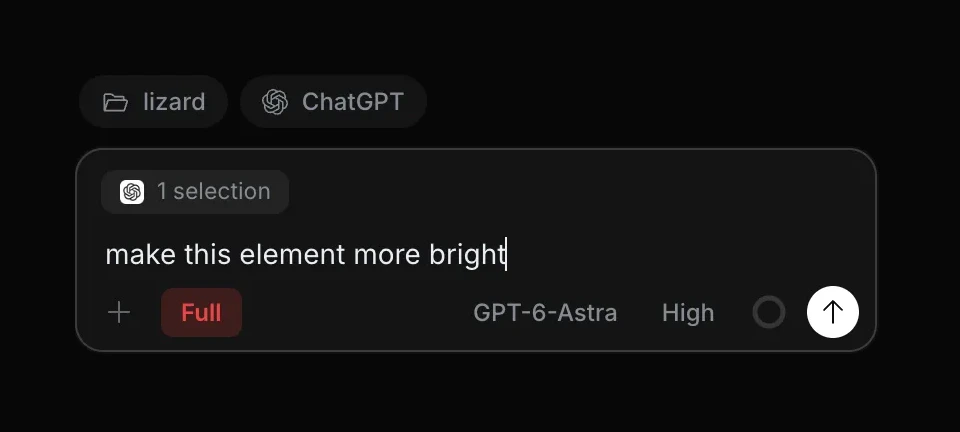
A crop of the real Studio composer. The selected element travels with the request. This screenshot shows a draft request, not proof that an agent completed a source edit.
The connection called ChatGPT in Lizard Studio uses the Codex CLI. It does not embed the chatgpt.com website. The extension and host are free and MIT licensed; you bring the provider account used by your agent. See the setup guide for the commands and the privacy policy for the data flow.
Your model choice, account limits and permissions still affect what the session can do. A free extension does not supply unlimited model use.
Run one coding task before choosing
A useful trial ends with a source change you can inspect and a page you can reload. Use your own small issue or the responsive card exercise. It starts with a long file name that makes a page overflow at 390px.
Keep the starting file and acceptance criteria the same for each tool:
- Record the page URL, viewport width and project folder.
- Ask the session to find the source that produces the broken card.
- Request a fix that keeps the full file name and the button visible.
- Read the file diff and check the page at 390px and 1280px.
- Reload and confirm that the fix remains.
Record how you supplied the page and file context. Note any manual steps or follow-up requests. If the two setups use different models, record that too; a single task cannot isolate the effect of the extension from the model.
| Check | Evidence to keep |
|---|---|
| The session inspected the intended page | Reported URL and viewport width. |
| It found the right source | File path and the rule causing the bug. |
| It made a lasting change | Source diff and the result after reload. |
| The fix preserved the UI | Full file name, visible button and desktop check. |
| You can repeat the workflow | Starting file, prompt, model and any extra steps. |
This gives you a concrete basis for choosing. A successful page summary does not test source editing, and a saved code change does not by itself prove that the page renders correctly.
Check publisher, access and project scope
Install from a link in the publisher's documentation. The official ChatGPT extension and Lizard Studio have different publishers and installation steps. Other products may also use “ChatGPT” in their names; check which service processes the request and which account you need.
For a coding session, confirm the selected folder before making an edit. For page access, review the extension's permissions in your browser. Use a sample project for the first trial so you can see the workflow with files you understand.
In Lizard Studio, files remain in the local project, but requests to a cloud model can include code and browser context. Read the privacy policy alongside your provider's terms. “Runs locally” describes the extension and host; it does not mean every model request stays on the computer.
If a change works only until refresh, check whether the session changed the live DOM or the served source. If the source changed but the page did not, check the dev-server URL, file path and any more specific CSS rule. Those checks apply whichever extension you choose.
Common questions
Is there an official ChatGPT Chrome extension?
Yes. Use OpenAI's extension guide to reach the current installation and compatibility instructions. Lizard Studio is a separate product.
Does a ChatGPT sidebar automatically have repository access?
The interface name does not tell you how file access works. Check the tool's project connection and permissions. In Lizard Studio, choose a local folder for the CLI session and verify that it contains the source served by your development URL.
Is this a guide to building a Chrome extension with ChatGPT?
No. It covers using an extension to inspect and edit a website. Building an extension is a separate project with its own manifest, browser APIs and release process.
Which extension should I try for CSS work?
Try the interface that fits how you supply page and source context. Lizard Studio offers element selection and measurement tools for this workflow. Run the same small CSS exercise in your chosen setup and inspect the result before committing to it.
Can I use Claude Code in the same panel?
Lizard Studio supports both agent connections. Some chat controls differ, so check the current feature list. The Claude in Chrome comparison covers the other browser workflow.
Build with AI. Ship with Lizard.
You don't need a platform team to go live. Your whole cloud, one CLI command away.
- Services
- —
- Add-ons
- —
- Deployments
- —
- Sandbox starts
- —