
Lizard Studio vs Claude in Chrome
By the Lizard team. Checked .
Choose Lizard Studio if you want a chat beside your website, with an element selector, annotations and design measurements feeding a local coding agent. Choose Claude in Chrome if you want Anthropic's official browser extension and its documented connection to Claude Code. Both can inspect a page and support debugging; the choice depends on the interface and tools you want around that work.
We build Lizard Studio. This comparison uses the Lizard Studio source and Anthropic's Chrome documentation, checked on September 14, 2026. It is a comparison of documented features and example tasks, not a speed benchmark or a claim that we tested every version and plan.
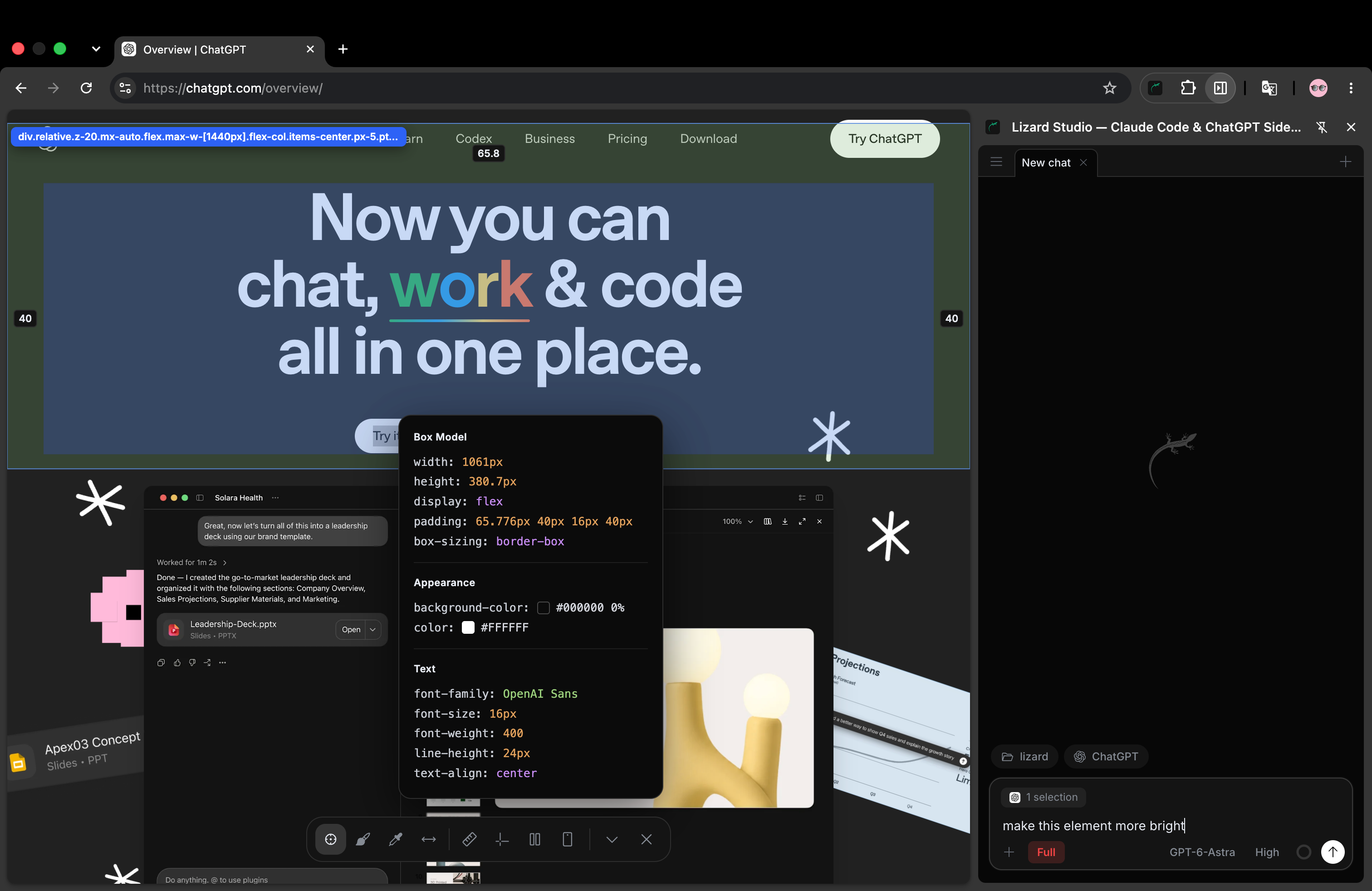
Lizard Studio beside a live page. The inspector shows the selected element’s styles, and the side panel holds the request. This screenshot uses the ChatGPT connection.
Which setup fits your work?
| Your task | Start with | Reason |
|---|---|---|
| Select an element, measure a gap and ask for a source edit | Lizard Studio | Its design toolbar sends context to a chat in the Chrome side panel. |
| Use Anthropic's supported Claude Code browser connection | Claude in Chrome | The official documentation covers setup and browser debugging from Claude Code. |
| Switch between Claude Code and ChatGPT beside the page | Lizard Studio | Both agents connect through local CLIs in the same extension. |
| Add browser work to an existing Claude Code terminal session | Claude in Chrome | Its documented CLI entry point is claude --chrome. |
| Mark up a layout issue before asking for a change | Lizard Studio | Annotate attaches the marked screenshot to the chat. |
If the official integration already covers your tasks, you may not need another extension. Try Lizard Studio when selecting, measuring or annotating the page would make your requests more precise. Install the free extension and use the setup guide to connect a project.
Compare the browser and code connection
| Area | Lizard Studio | Claude in Chrome with Claude Code |
|---|---|---|
| Publisher | Dragon Labs LLC; MIT-licensed source | Anthropic's official extension |
| Agents in the interface | Claude Code and ChatGPT; the ChatGPT connection uses Codex CLI | Claude; the coding connection uses Claude Code |
| Page inspection | DOM, screenshots, console and network tools | Documented browser inspection and debugging |
| Browser actions | Click, type, navigate and fill forms | Documented browser automation |
| Source edits | The local agent edits the project folder you select | Claude Code handles coding tasks alongside browser work |
| Design controls | Selector, Annotate, rulers, guides, grid, eyedropper, distance and responsive preview | Check the official feature list for the controls you need |
| Local setup | Extension, chosen agent CLI and the Lizard Studio host | Follow Anthropic's prerequisites and Chrome setup |
| Cost | Extension and host are free; agent use follows the provider's terms | Follow Anthropic's current plan requirements |
Read the Lizard Studio tool list and official Claude in Chrome capabilities for the source behind the table. An empty claim about a competitor's design controls would be misleading: this table does not treat an undocumented control as proof that the product cannot solve the task.
Example 1: fix the gap between two buttons
Suppose a card has two buttons almost touching. You want a 24px gap in that row, while the space between cards stays as it is. The result is easy to verify: the row's computed gap must equal 24px, and the diff must change the source rule that owns the row.
In Lizard Studio, open the local page, select the row and measure the current gap. Send the selection with a request to change the source. The agent can inspect the attached element, find the CSS or component and propose an edit. Review the diff, then refresh and measure again.
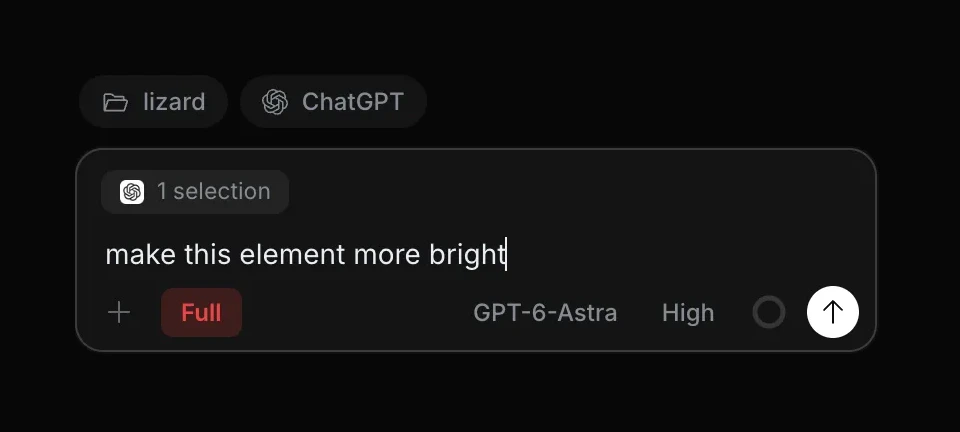
The “1 selection” chip attaches a page element to the request. This crop shows a brightness request in ChatGPT; use your own spacing request and chosen agent for the button example.
With any Claude Code browser setup, give the agent the same target and expected result. Check how you identify the row, how the tool shows the proposed file edit and how you review the page afterward. Those steps determine whether the interface suits you better than another one.
Use the downloadable spacing exercise for a small test. It isolates the layout rule so you can check the outcome without accounts, a database or a large application. It does not predict how either tool will perform on a complex component system.
Example 2: explain a visual issue that spans several elements
A responsive heading may push a button below the first screen. Selecting the heading alone can omit the button and its parent layout. In Lizard Studio, an annotation can show the area you mean, while the responsive preview helps you describe the affected width.
Include the intended behavior in the request: which elements should remain together, what may wrap and which content must remain visible. A screenshot records one state; the agent should also inspect the layout rules and test another width before proposing a broad change.
For either product, review the source at the component boundary. A change to a shared class can repair this page and damage another one. Ask the agent to identify where the rule is used and limit the edit to the affected component when that matches your intent.
A useful evaluation records the request, the diff and two viewport sizes. It does not judge the tool from the first screenshot that looks acceptable.
Example 3: debug a button that looks right but does nothing
A design toolbar will not by itself explain a broken request or event handler. Ask the agent to reproduce the click, inspect the console and network state, and trace the behavior to the project files.
Lizard Studio provides browser tools for that task alongside its design tools. The official Claude Code integration also documents live debugging, so this task is not an exclusive reason to choose Lizard Studio.
Make the expected behavior concrete: the button should submit a valid form, display a success message and leave the page in a known state. After a fix, test both the successful path and the error you started with. A quiet console alone does not show that the workflow works.
Start with a local test app or a test account you control. Choose the permission mode that suits the actions you want the agent to take, and read the results before keeping a change.
The difference between a live-page change and a lasting edit
Changing a DOM node or adding an inline style can show a proposed design immediately. That change usually disappears when the browser reloads the original page. Editing a component or stylesheet in the local project changes the source your dev server serves.
This distinction applies whichever interface you choose. Ask for a source edit when you want to keep the result. Check git diff, refresh the page and inspect the target again. If the result disappears, find out whether the agent edited the DOM, a file outside the served project or a rule that another stylesheet overrides.
Lizard Studio needs the correct local folder to make lasting source changes. Inspecting a public website does not grant access to that site's source repository. A local edit also does not publish a change: deployment remains a separate action.
Accounts, setup and data
Lizard Studio does not require a Lizard login. You install the Chrome extension and local host, then connect the chosen agent with your own account. The host and extension are free. Your AI provider controls model access and usage charges; “free extension” does not mean unlimited model use.
For the official integration, read Anthropic's current prerequisites before installing. Account and authentication requirements can change, so use that page to check eligibility rather than relying on an old setup video.
The Lizard Studio host runs locally and sends requests through the selected agent. Lizard Studio does not operate a chat server or collect telemetry. A cloud model still receives the material its agent sends. Review the Lizard Studio privacy policy and your provider's terms if the project has data restrictions.
For either setup, keep the distinction between local execution and remote model processing clear. Check which project folder, tabs and accounts the session can reach before using it for a task that depends on those boundaries.
How to compare them on your own project
Use a small change you can repeat. Keep the starting code, request, agent model and acceptance criteria the same where both products support them. If the model or account differs, record that difference; it may affect the result more than the interface.
Record these observations:
- Could you point at the right element without a long explanation?
- Did the agent edit the intended source file?
- Could you inspect and understand the diff?
- Did the result survive a refresh?
- Did it still work at the second viewport width?
- Did the tool ask for clarification or change unrelated code?
Repeat on a visual issue and a behavior bug. Keep failed attempts in your notes. A single successful run is useful for learning a workflow, but it is not enough to claim that one tool is faster or more reliable.
If you want to compare against a desktop or editor interface too, use the Claude Code GUI guide. It separates the choices by where you work and how you review changes.
Common questions
Is Lizard Studio an official Anthropic extension?
No. Dragon Labs LLC publishes Lizard Studio. Claude in Chrome is Anthropic's extension. Lizard Studio connects to your own Claude Code installation and also supports ChatGPT through Codex CLI.
Can both help Claude Code debug a website?
Yes. Both document browser inspection and debugging workflows. Lizard Studio combines those tools with a chat side panel and a design toolbar. Choose based on the setup and controls you use, rather than the claim that only one can see a page.
Do I need to switch from Claude Code to use Lizard Studio?
No. Connect your existing Claude Code installation, account and project folder. You can choose ChatGPT for another chat if you have that agent installed. See ChatGPT in Lizard Studio for the Codex CLI connection.
Can I use both extensions?
This comparison does not establish how every pair of extension versions behaves when active together. To evaluate them, run one browser workflow at a time and confirm which tool owns the session and page context.
Where should I start?
If you want the official Claude browser connection, follow Anthropic's guide. If you want to select and measure elements beside your chat, follow the Lizard Studio setup guide and try one source edit.