
Claude Code GUI: choose an interface for your workflow


The right Claude Code GUI depends on where you want to inspect a page, give the agent context and review its file edits. Start with the official desktop app or IDE extension if you want an interface for general coding work. Consider Lizard Studio when you want the chat and design tools beside an existing Chrome tab.
This guide compares five interfaces by workflow rather than assigning an overall score. We build Lizard Studio. We checked the linked product documentation on September 14, 2026; we did not run a controlled speed or reliability benchmark across all five tools.
Compare the interfaces
| Interface | Where you work | Consider it when | Check before choosing |
|---|---|---|---|
| Claude Code Desktop | Claude's desktop app | You want the official standalone interface for sessions and code review. | Current OS and account support, and how its preview fits your app. |
| Claude Code for VS Code | Your existing editor | Files and editor diffs are central to your work. | Extension requirements and the browser setup for your workflow. |
| Lizard Studio | Chrome side panel and page toolbar | You want to select, annotate and measure elements beside your chat. | Local host, agent CLI and the folder connected to the page. |
| Clodex | A separate desktop application | You want direct visual controls that write edits back to source. | Supported projects and current plan terms. |
| Nimbalyst | A separate visual workspace | Your work includes visual documents and agent sessions. | The editors and integrations needed for your project. |
“Claude Code UI” is also a name used by specific projects. If you found a particular repository or app under that name, check its publisher and installation instructions rather than assuming that all GUI results describe the same product.
Claude Code Desktop: the official standalone app
Anthropic's Code tab brings sessions, file changes and app previews into its desktop application. Its documentation covers local and remote environments, permissions and reviewing diffs. It is a sensible first option if you want an official GUI without making your code editor the center of the session.
Read the desktop reference for current capabilities and desktop setup for supported systems and accounts. Avoid choosing from an old screenshot: the preview and session controls can change between releases.
For your evaluation, open a small project and ask for one file edit. Check whether the preview reaches the route you need and whether you can trace the resulting change back to the right file. If your app depends on a particular browser login, include that requirement in the test.
Claude Code for VS Code: work beside your files
The official VS Code extension places Claude Code in the editor. Anthropic documents context selection, reviewing changes and connecting browser capabilities. It suits a workflow where you already navigate components and inspect diffs in VS Code.
Use the official extension guide to check installation and current browser support. The extension and the desktop app are different interfaces; compare the version you actually intend to use.
Try a task that crosses a component and its stylesheet. Check how you attach source context, review both changes and verify the rendered page. If you spend most of your time in files, staying in that interface may require fewer steps than moving the chat into Chrome.
Lizard Studio: inspect and edit beside the live page
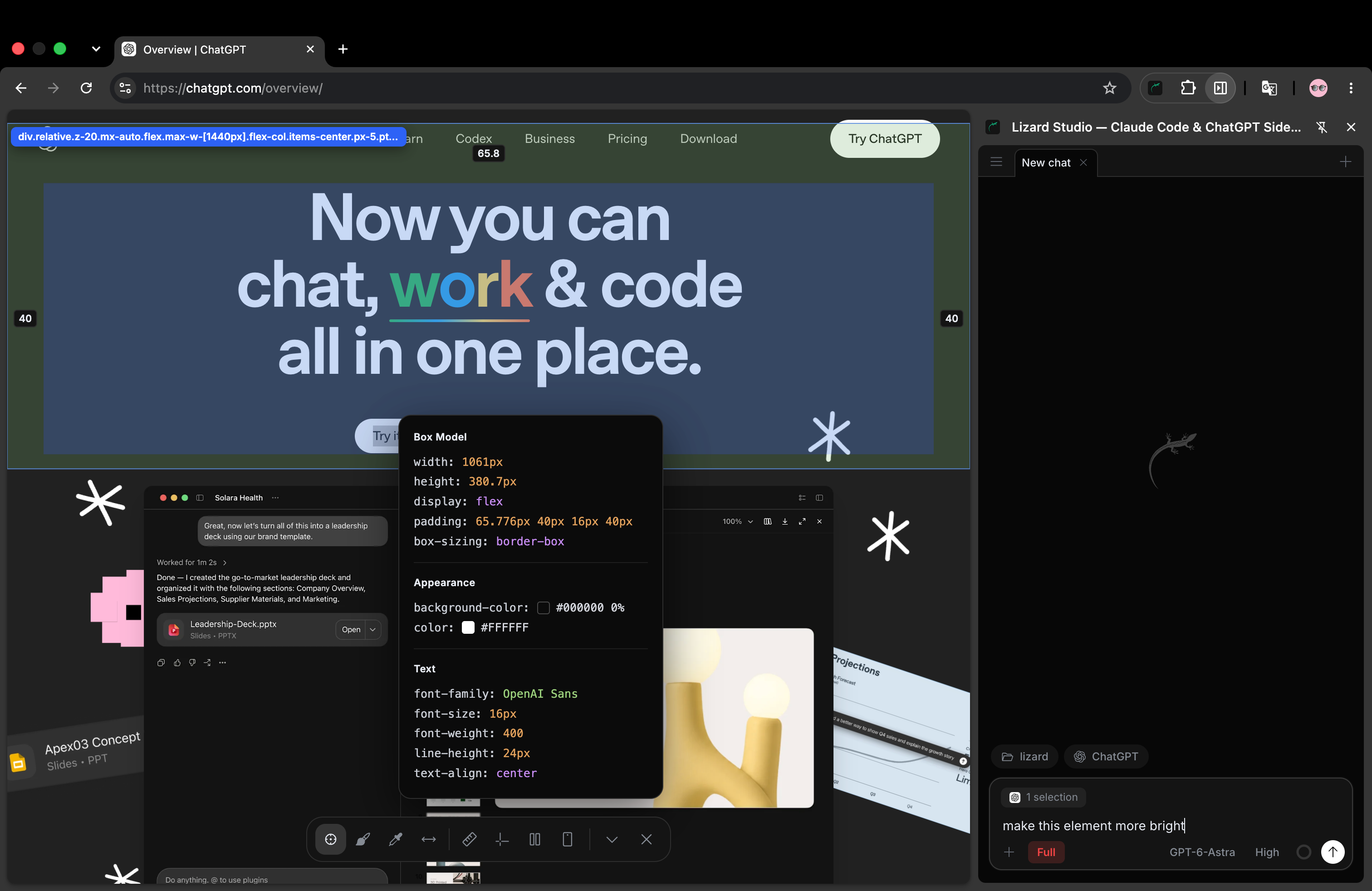
A real Lizard Studio session: the selected element and inspector sit on the page, while the request stays in Chrome’s side panel. This screenshot shows the ChatGPT connection.
Lizard Studio is a free, MIT-licensed Chrome extension. It runs Claude Code or ChatGPT through a local CLI and connects the session to your browser and project folder. ChatGPT is the panel's name for the Codex CLI connection.
The page toolbar includes Selector, Annotate, rulers, guides, a column grid, a color picker, distance measurements and responsive preview. Browser tools let the agent inspect the DOM, screenshots, console and network, then interact with the page as part of the task. See the source and tool list.
Choose this workflow when the change starts with something you see: a cramped button row, an element at the wrong size or an error that appears after a click. Select the element or mark the area, describe the result and review the source diff.
The setup requires a local host and an installed agent. The free extension does not include model use. Your selected provider sets account eligibility, limits and charges. Read the setup guide and try the spacing exercise before deciding.
The documented design workflow uses selections and prompts to request code edits. If you need to drag a control and have it write CSS directly, check tools built around that operation.
Clodex: direct visual controls for source edits
Clodex describes a desktop workspace that runs Claude Code against a local project and adds visual controls to its preview. Its guide covers changes such as spacing, size, typography and text, with edits written to the source files. That makes it relevant when hands-on visual editing is a central requirement.
Read its visual editor guide for the supported operations and limits. It states that you bring Claude access and that its desktop product has paid plans. Check current terms before installing.
A useful trial is a layout change in your own component structure. Check whether the visual control edits the declaration you expect, and inspect the file after a later agent request. A control that works well on a simple page may need a different workflow for nested layouts or shared design tokens.
Nimbalyst: visual work alongside coding sessions
Nimbalyst presents itself as a visual workspace for Claude Code and Codex, with editors for several kinds of project material. Consider it if the same task involves code, plans or visual documents and you want to work with them in one application. Its current product page lists the available editors and agent connections.
Evaluate the editor you need rather than the number of features on the page. Open a representative file, make a small change and check the saved format. Then ask the agent to work with the result. That shows whether the visual document remains useful in your existing repository and review process.
Choose from the task you repeat
For code-heavy work, begin with the desktop or VS Code interface you already understand. For page-led work, test how quickly you can identify the element and supply the intended change. For manual visual design, check whether the controls write ordinary source changes that your team can review.
Use the same acceptance criteria for each tool:
- The session opens the intended repository and page.
- The agent or editor changes the expected source file.
- You can read and approve the diff.
- The result persists after refresh.
- A second viewport or related page still works.
Add one requirement specific to your project, such as a CSS module, a shared component or a page that requires a test login. Do not use a different model and a different task for each interface and treat the results as a clean comparison.
GUI, visual editor and browser automation
These terms describe different parts of the workflow. A GUI is an interface for using the agent. A visual editor offers controls for changing a design. Browser automation lets an agent inspect or operate a page. One product can provide several of these, but the presence of one does not establish the others.
When you read a feature page, look for the exact operation you need. Can you select a rendered element? Does a control edit the source or only the live DOM? Can the agent inspect a failed request? How do you see and approve the file diff?
The Lizard Studio and Claude in Chrome comparison covers the two browser setups in more detail. Both can support debugging; design controls, agent choices and session setup are more useful criteria than a broad claim about browser access.
Common questions
Is a GUI required to use Claude Code?
No. You can use its terminal interface. A GUI changes how you give context, inspect sessions and review results; choose it when those controls help your work.
Does a free GUI include free model use?
Not necessarily. Lizard Studio's extension and host are free, while the connected provider supplies agent access. Check software cost and model access separately for every tool.
Which one should I try for CSS fixes?
Try a tool that can identify the rendered element and connect it to a source edit. Use this downloadable spacing exercise to check the file diff and the page after refresh. If you prefer direct visual controls, include that requirement in your trial.
Can I use ChatGPT in Lizard Studio instead?
Yes, through the local Codex CLI connection. The ChatGPT guide explains the naming, setup and a source-editing example.
Build with AI. Ship with Lizard.
You don't need a platform team to go live. Your whole cloud, one CLI command away.
- Services
- —
- Add-ons
- —
- Deployments
- —
- Sandbox starts
- —