
ChatGPT website editor: fix an existing site in Chrome


To use ChatGPT as a website editor for an existing project, connect the coding session to both the rendered page and its source folder. Then ask for a specific change, review the file diff and reload the page. In Lizard Studio, you can select an element in Chrome and send it to the ChatGPT panel, which runs through the local Codex CLI.
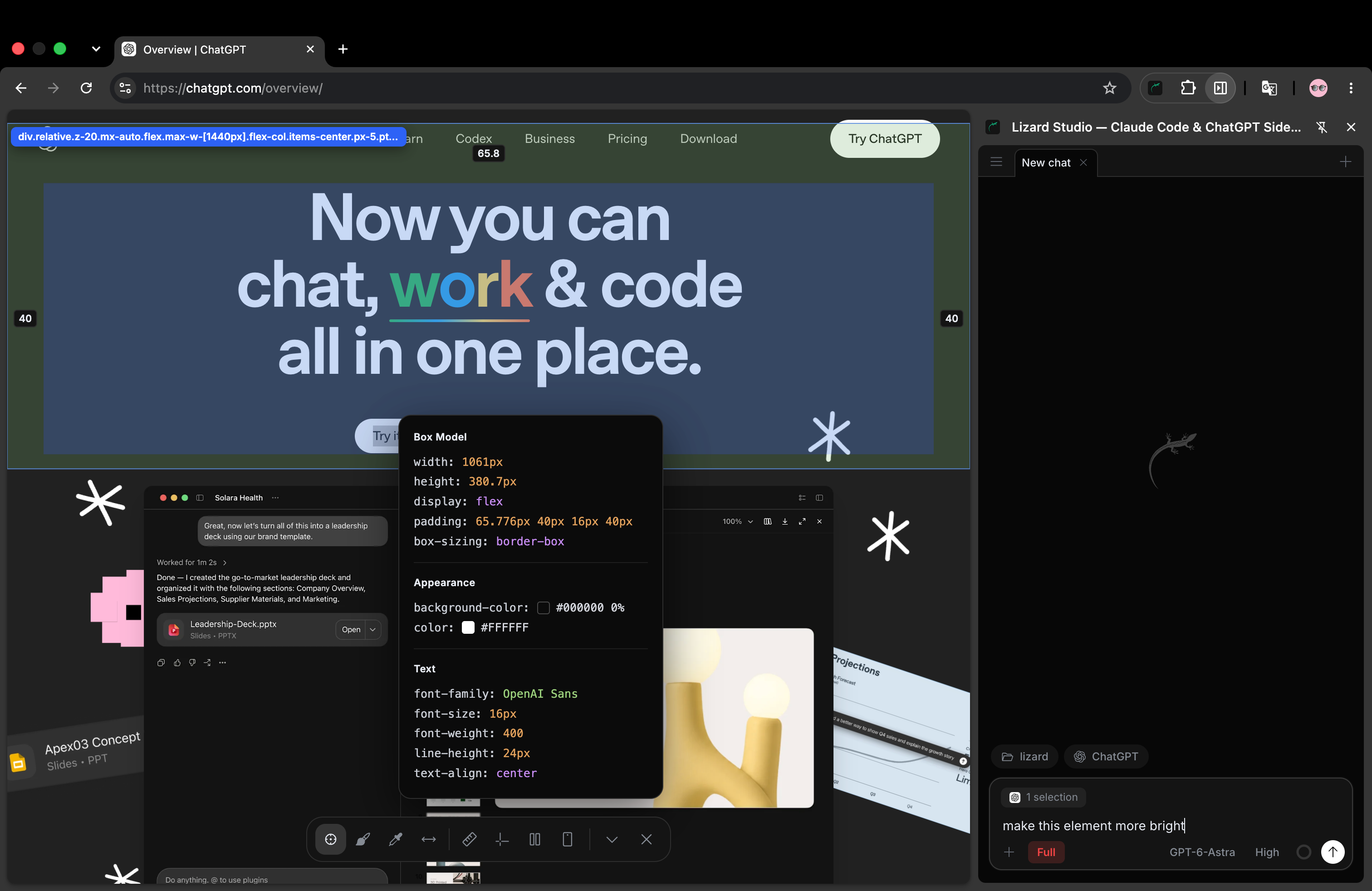
This real Lizard Studio screenshot shows the browser tools and ChatGPT connection. It illustrates the interface; the downloadable exercise below uses a separate local page.
We build Lizard Studio. This guide includes a small mobile layout bug you can reproduce without an app framework. We checked the example in a browser and the linked product documentation on September 14, 2026. The example validates a CSS fix, not an agent's speed or success rate.
Choose the editing workflow for your project
If you want to create and host a site within ChatGPT, consider ChatGPT Sites. OpenAI documents starting from a prompt or a compatible existing local project. Check compatibility before moving a project into that workflow. ChatGPT Sites documentation.
If you already have a repository, development server and release process you want to keep, this guide uses those. Lizard Studio connects the browser to the selected local folder. The underlying Codex CLI can inspect files, edit code and run commands in a project. Codex CLI documentation.
| Your starting point | First step |
|---|---|
| An idea for a new site | Evaluate a site builder or ChatGPT Sites. |
| An existing project you want to use with Sites | Check its project compatibility and publishing workflow. |
| A local website with a visible bug | Open its dev server, connect the source folder and reproduce the bug. |
| A site you can view but cannot edit | Get access to its source or use its own editor before planning a lasting change. |
A screenshot can describe a problem, but it does not identify the file that owns the layout. A useful editing session checks both.
Connect the page and the source folder
Complete the ChatGPT setup guide: install the extension and local host, sign in to the Codex CLI, then select ChatGPT and your project folder in Lizard Studio. The extension and host are free; provider account requirements and usage limits still apply.
Start your project's development server and open its local URL in Chrome. Before requesting an edit, ask:
Report the current page URL and the project folder you can edit.
Find the source file for this page. Do not change it yet.
Check those answers. A deployed page and a local page may look the same while loading different code. If the session points at a different folder, correct it before continuing.
For this exercise, download responsive-card.html into an empty local folder. Use your browser's Save Page As command and choose HTML only, or save the linked source file. Serve that folder with a local HTTP server:
python3 -m http.server 8080Open http://localhost:8080/responsive-card.html and choose that folder in Lizard Studio. The example uses plain HTML and CSS. Its optional font falls back to sans-serif when downloaded on its own. The Open button is an inert sample control.
Reproduce the mobile overflow before asking for a fix
Set the viewport to 390 CSS pixels wide using responsive preview or Chrome DevTools. The card contains a long file name and an Open button. The name takes more space than the row has available, and the page scrolls sideways.
Select the card with Selector. The attached element helps identify which rendered container needs attention. For a larger issue, annotate a screenshot to point out both the file name and the button.
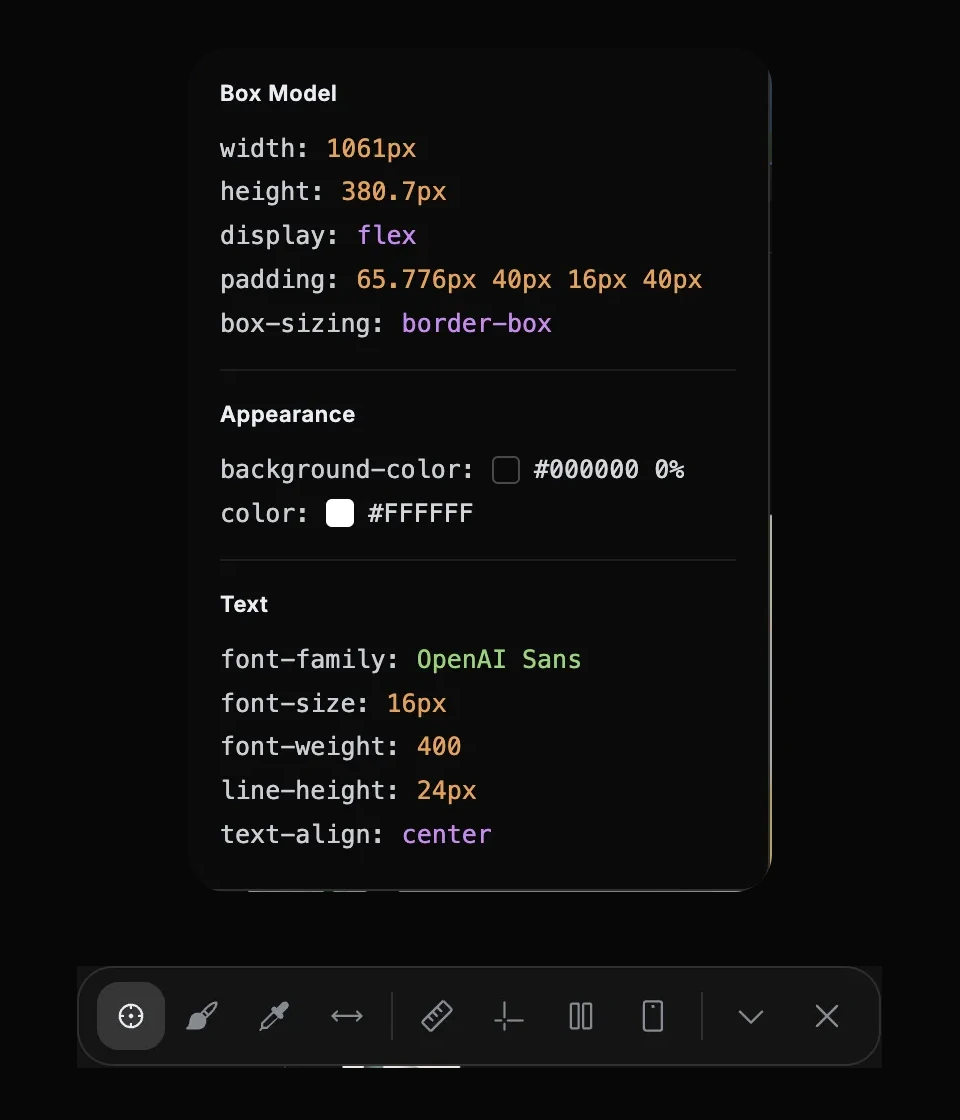
The inspector and toolbar in the existing Studio session. Use these controls to inspect your own card; the values shown here belong to the screenshot's selected element.
Give the agent an outcome it can check:
At a viewport width of 390px, the selected file card makes the
page scroll horizontally. Find the cause in responsive-card.html
and fix the source CSS.

Keep the full file name readable and the Open button visible.
Keep the colors, labels and desktop layout. Do not hide overflow
on the page or shrink the font to make the content fit.

Show the diff. Reload and check the page at 390px and 1280px.
Report the viewport width and the document scroll width at each.
The last lines matter: hiding overflow can remove a scrollbar while leaving part of a control out of reach. The goal includes readable content and a usable button.
Review the CSS change
In this fixture, .file-info is a flex item. Its default minimum size and the long file name prevent the row from fitting the narrow card. One small fix lets the item shrink and lets the name break where needed:
.file-info {
  flex: 1;
  min-width: 0;
}

.file-name {
  margin: 0;
  color: #e9edf4;
  overflow-wrap: anywhere;
}
This is the answer for this sample, not a rule to add to every element on a website. In another project, a fixed width, grid track or image may cause the overflow. Ask the agent to identify the rule before applying a fix.
Read the source diff. It should preserve the file name, button label and colors. It should not add overflow-x: hidden to the page, shorten the name or change shared typography to pass this exercise.
Check the result after a reload
At 390px, the full name should wrap inside its part of the card. The Open button should remain inside the card. At 1280px, check that the desktop row still looks right.
You can run this read-only check in the browser console, or ask the agent to report the same values:
({
  viewportWidth: document.documentElement.clientWidth,
  scrollWidth: document.documentElement.scrollWidth,
  hasHorizontalOverflow:
    document.documentElement.scrollWidth >
    document.documentElement.clientWidth
})
The corrected fixture should report hasHorizontalOverflow: false at both widths. Also inspect the card itself: a document-width check alone cannot prove that every element remains readable.
Reload once more. If the bug returns, confirm that the agent edited the file your server serves. A change applied only to the live DOM usually disappears when the browser loads the source again.
We checked the original and corrected fixture at 390px and 1280px, including document overflow, the button's bounds and the unchanged text. You can repeat that check with the linked starting file and the CSS above. We did not run a controlled comparison between agents.
| Viewport | Original document width | Corrected document width | Button inside the corrected card |
|---|---|---|---|
| 390px | 424px | 390px | Yes |
| 1280px | 1280px | 1280px | Yes |
These measurements use Chromium with the site's Geist font loaded. A downloaded copy can use the fallback font and produce a different original width; check the same acceptance criteria.
Move from the example to your own website
Choose one issue and state the affected route, viewport and expected result. For a React app, the fix might belong in a component, CSS module or utility class. Give the session access to the actual project and ask it to locate that source.
After the local check, run the checks your project normally needs. A shared card may appear on several routes; inspect another use of it before committing. Publish through your usual release process when the change is ready. Editing a local file does not update your deployed site by itself.
If you are still choosing a browser tool, read ChatGPT Chrome extensions for developers. It compares the official extension and Lizard Studio by the workflow each documents.
Common questions
Can ChatGPT edit an existing website?
Yes, when the chosen tool has access to the project or its editor. This guide uses a local source folder through Lizard Studio's Codex CLI connection. For ChatGPT Sites, check whether the existing project fits its supported workflow.
Can it fix CSS from a screenshot?
A screenshot helps explain the visible problem. Give the session the source and a way to inspect the rendered result too. For overflow, specify the viewport width and which content must stay readable.
Is Lizard Studio the official ChatGPT extension?
No. Lizard Studio is an independent, open-source extension. OpenAI has a separate official extension; see the developer comparison.
Will a local edit change the live website?
Only after you publish the changed source through that site's release process. Test the local result, review the diff and verify the deployed route after release.
Build with AI. Ship with Lizard.
You don't need a platform team to go live. Your whole cloud, one CLI command away.
- Services
- —
- Add-ons
- —
- Deployments
- —
- Sandbox starts
- —